What are the two autoplay settings on YouTube?
YouTube uses the word autoplay for two different behaviours, and people often switch off one and wonder why the other keeps happening.
- Autoplay next video. When a video ends, YouTube starts another one without you doing anything. This is the one that chains an evening together.
- Playback in feeds. Videos start playing, usually muted, as you scroll past them on the home page or in the list of channels you follow. This one makes the app feel alive, and makes it harder to scroll past without being caught by something.
They live in different places in the settings, and guides do not always agree on where, because YouTube moves menus between versions. The steps below are the ones that matched the guides we checked in October 2026. If your screen differs, look through the Autoplay and General sections.
How do you turn off autoplay on Android?
For the next video:
- Open the YouTube app and tap your profile picture.
- Tap Settings, then Autoplay.
- Switch off "Autoplay next video."
For videos playing in your feeds:
- From Settings, open General.
- Find "Playback in feeds" and set it to Off.
Two notes. First, some guides describe the feed setting as part of the Autoplay menu, particularly in older versions, so if you cannot find it under General, check there. Second, these settings apply to the app on your phone. Changing them does not change how YouTube behaves in a web browser, or on a television, where you would need to change it again.
Why does turning off autoplay help?
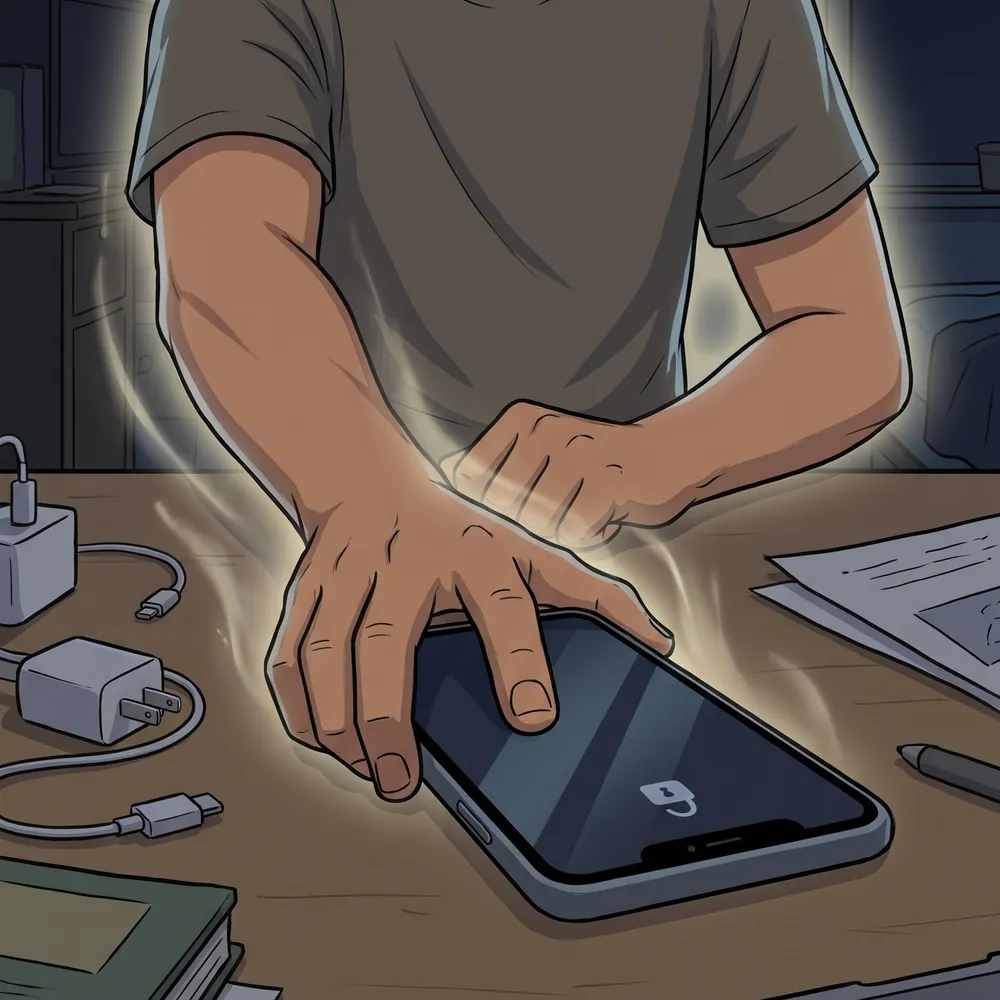
Because it restores a stopping point. A film ends and the credits roll. An episode ends and you decide whether to press play. Autoplay is designed to remove that moment, so that continuing needs no decision and stopping needs one. With it off, the end of each video becomes a small fork in the road, and a fork is exactly where a deliberate choice can happen.
This is the mechanism behind a lot of unplanned viewing. We describe the wider pattern in why you cannot stop watching Shorts: feeds that remove the natural ending make stopping the harder option. Autoplay is the long-video version of the same design.
It will not fix everything, and you should not expect it to. But it is one of the cheapest changes available, it costs you no convenience you actually wanted, and for many people it noticeably shortens the "one more" chain.
What does turning off autoplay not stop?
Three things stay exactly as they were.
- Recommendations. YouTube will still offer you suggested videos beside and below whatever you are watching. Without autoplay you have to tap one, but they are still there, and a good thumbnail is still a good thumbnail.
- The Shorts feed. Shorts is a separate area of the app that plays one clip after another by design. Autoplay settings do not govern it, and it has no ending to restore. It is the larger risk for many people, and it needs a different approach.
- Your own willingness. Autoplay off turns a passive slide into an active tap. It does nothing about a tired evening in which tapping is easy.
If Shorts is the part that actually takes your time, our guide to blocking YouTube Shorts and keeping YouTube covers what YouTube's own settings do and do not remove, and what closes the feed itself.
How does the "one more" chain actually work?
It helps to see the sequence, because once you can see it you can interrupt it. You search for one thing and watch it. As it ends, YouTube offers another video that looks related, and with autoplay on, it starts after a short countdown. You were going to leave, but leaving now needs an action, and staying needs none.
The recommendation is rarely random. It is chosen because it resembles things you have already lingered on, which is why the second video often feels like a natural continuation and not a detour. By the fourth or fifth, the original reason for opening the app is gone, and nothing in the sequence ever asked whether you wanted to continue.
Turning autoplay off breaks the chain at its weakest link. It does not remove the recommendations, but it forces a tap between every video, and a tap is a moment of choice.
Is autoplay ever useful?
Sometimes, and it is worth being honest about that. If you have built a playlist of a lecture series, a set of tutorials or an album, letting it run is exactly what you want, because you chose the sequence in advance. The difference is who picked what comes next: you, or a system optimising for how long you stay.
So a sensible approach is not to treat all autoplay as the enemy. Keep the setting off by default, and when you want a run of videos, make a playlist for it. That turns a chain you did not choose into a list you did, and it ends when the list does.
It is also worth remembering that autoplay on a television works differently from autoplay on a phone, since the room, the remote and the company all change the habit. You may find you want different settings on each.
What else on YouTube is worth changing?
A short list, in order of effort and usefulness:
- Turn off notifications from channels you do not need. YouTube is generous with alerts, and each is an invitation to open the app.
- Use Not interested or Don't recommend this channel on suggestions that pull you off course. It is a small act of editing that adds up over a few weeks.
- Search for what you came for. Opening the home page is opening a menu designed to change your mind. Searching keeps the visit tied to a purpose.
- Set a reminder for breaks if you want one. It is a prompt rather than a barrier, and most people dismiss it, so do not rely on it alone.
For the part autoplay settings cannot reach
On Strict, Qlean closes the Shorts feed and leaves YouTube's search, channels you follow and long videos working. Standard closes adult content and leaves everything else alone.
Qlean is a distraction blocker for Android. It closes the so-called entertainment that eats your attention: time-consuming Reels and Shorts, endless feeds, adult content and porn, the moment they open on your phone. No willpower needed. It never records your screen and keeps no record of what you view.
Get Qlean on Google PlayWhat about autoplay on the web, a tablet or a TV?
The setting you just changed applies to the YouTube app on your phone. On a computer, a tablet or a television, YouTube has its own autoplay control, and it is changed separately on each. Each has its own autoplay control, though where it sits differs by device and we have not tested them all.
If you share a household device or an account, it is worth a few minutes to check each one. A switched-off phone beside a television that autoplays all evening only moves the problem to a different screen.
How do you know it worked?
Run a simple test over a week. Pick one evening you would normally lose to YouTube and note, afterwards, how many videos you watched and whether you chose each one. Then do the same on a night with autoplay off.
You are not looking for a dramatic change. You are looking for the number of videos you opened without deciding to, and for whether the end of a video now gives you a moment to put the phone down. If it does, the setting is doing what it was meant to. If it does not, the problem is probably the Shorts feed or the timing of your evenings, and those are worth addressing next.
Re-check after YouTube updates. Settings sometimes move or reset, and the quickest way to notice is to look.